Build an MCP Server and Deploy as a Cloudflare Worker
Have you ever asked an AI assistant to generate code for a framework it doesn't quite understand? Maybe it produces something that looks right, but the syntax is slightly off, or it uses deprecated patterns. The AI is working hard, but it lacks the specific context it needs to truly help you.
The Model Context Protocol (MCP) was designed to bridge this knowledge gap by giving AI assistants access to domain-specific knowledge and capabilities they don't have built in.
What is MCP?
MCP is an open standard that defines how AI clients communicate with remote servers. It provides a standardized protocol for clients like Claude, Cursor, or VS Code to access tools, resources, and capabilities from external systems.
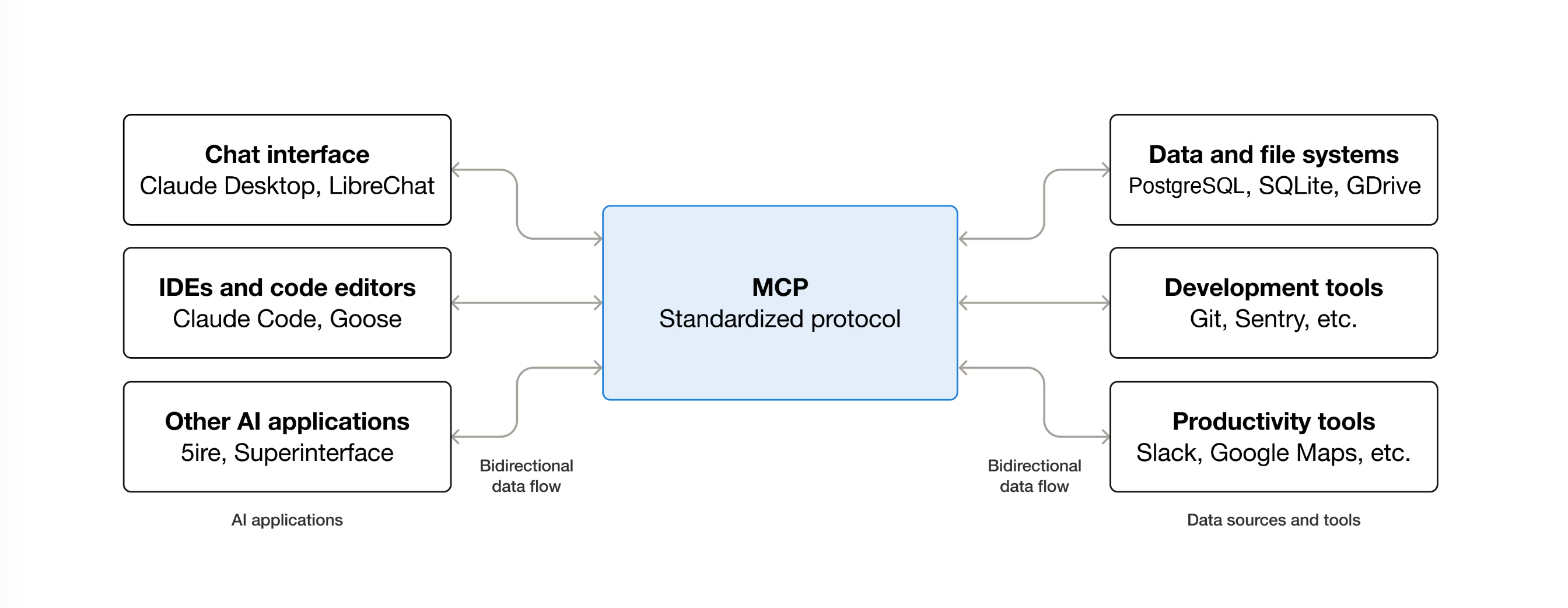
Currently, MCP servers can expose several types of capabilities to AI clients:
- Resources: Data that can be read by clients, such as documentation, configuration files, or API responses
- Tools: Functions that the AI can call to perform actions, fetch data, or validate content
- Prompts: Pre-built structured message templates and instructions that help users accomplish specific tasks
The protocol continues to evolve, with multiple specification versions released in 2025 and a draft spec for future capabilities. The three core primitives above form the foundation, but expect the ecosystem to grow over time.
Why build your own MCP server?
MCP works best when you build servers tailored to your specific domain. While the ecosystem includes servers for many common integrations and data sources, you or your organization likely has unique requirements that may warrant a custom implementation.
Consider these scenarios:
- Your team needs AI to access company-specific data or internal tools
- You want to automate workflows that span multiple systems (CI/CD, issue tracking, deployments)
- You have domain expertise or specialized knowledge that AI assistants lack
- Your organization uses internal APIs or services that need to be integrated with AI workflows
For each of these, you could build an MCP server that teaches AI assistants exactly what they need to know.
A real-world example: The MDC syntax helper
Let me walk through a real example — an MCP server I built for the Kong Developer Portal.
Kong's Dev Portal allows customers to create custom pages using MDC Syntax from Nuxt to supercharge Markdown and give customers the ability to integrate Vue components with slots and props inside their Markdown. Users can build hierarchical page structures with rich components, custom metadata, and styled content blocks to create a fully branded developer experience.
The problem? AI assistants don't inherently understand MDC syntax or know what components are available. When users ask their AI assistant or MCP client (e.g. Claude or Cursor) for help creating portal content, the AI might generate invalid syntax or suggest components that don't exist.
This matters because MDC isn't just about formatting text. Customers use it to create professional branded pages with full-width hero sections, responsive feature grids, stylized cards, and more.
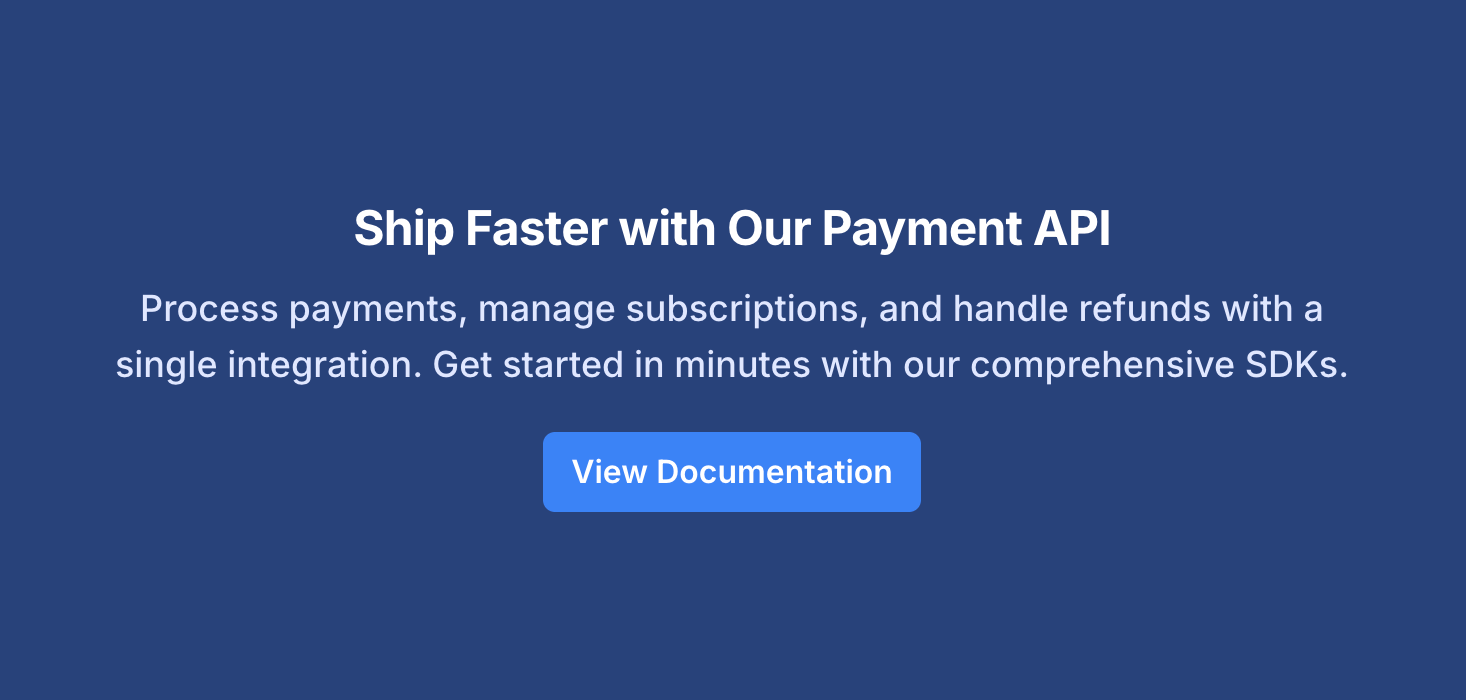
Here's what a simple hero section looks like in MDC:
::page-hero
---
full-width: true
title-color: "#ffffff"
description-color: "#e0e7ff"
background-color: "#29417a"
border-radius: "0"
padding: "80px 40px"
text-align: "center"
---
#title
Ship Faster with Our Payment API

#description
Process payments, manage subscriptions, and handle refunds with a single integration. Get started in minutes with our comprehensive SDKs.

#actions
  :::button
  ---
  appearance: "primary"
  size: "large"
  to: "#docs"
  background-color: "#3b82f6"
  ---
  View Documentation
  :::
::
And here's how the same hero section renders in the portal:
Without understanding MDC syntax and the available components, AI assistants can't help users build these content sections or full pages effectively.
The MCP server I built bridges this knowledge gap by exposing tools that teach AI clients about MDC syntax, provide component examples and metadata, bundle resources for offline reference, and validate syntax to catch errors before they reach users.
Tools that teach AI assistants about MDC
- A syntax guide that returns the complete MDC documentation
- A component listing that fetches all available components from the portal's API
- Component metadata retrieval for props, slots, and type information
- Usage examples for each component showing real-world patterns
- A syntax validator that checks generated MDC and reports errors with line numbers and detailed messages
Static resources for offline reference
- Bundled markdown documentation for offline access
- Design token reference for consistent styling
Putting it all together: The AI client workflow
When a user asks for help creating portal content, the AI client follows a natural workflow:
- Calls the syntax guide to understand MDC rules and structure
- Discovers available components and fetches their metadata (props, slots, interfaces)
- Reviews real usage examples to see patterns in action
- Generates the content and runs it through the validator to catch syntax errors
The end result is validated MDC content using real portal components with proper syntax, branded styling, and ready to publish.
You can use this same pattern whenever you have a custom syntax, component library, or API that AI needs to understand. An MCP server helps AI assistants work with your specific tools and formats.
Building an MCP server
Let's build an MCP server from scratch. We'll use TypeScript and deploy to Cloudflare Workers using their Agents SDK, which works well for remote MCP servers.
Project setup
First, create a new project and install dependencies:
Install the required dependencies:
And the dev dependencies:
Here's what each package does:
@modelcontextprotocol/sdk: The official MCP SDK for building serversagents: Cloudflare's Agents SDK for building MCP servers on Workerszod: Schema validation for tool input parameterswrangler: Cloudflare's CLI for local development and deployment
TypeScript configuration
Create a tsconfig.json:
{
  "compilerOptions": {
    /* Language and Environment */
    "target": "ES2021",
    "lib": ["ES2022"],

    /* Modules */
    "module": "ES2022",
    "moduleResolution": "bundler",
    "allowImportingTsExtensions": true,
    "verbatimModuleSyntax": true,
    "resolveJsonModule": true,
    "types": ["node", "./worker-configuration.d.ts"],

    /* Emit */
    "noEmit": true,

    /* Interop Constraints */
    "isolatedModules": true,
    "esModuleInterop": true,
    "forceConsistentCasingInFileNames": true,

    /* Type Checking */
    "strict": true,
    "noUncheckedIndexedAccess": true,
    "noImplicitReturns": true,
    "noFallthroughCasesInSwitch": true,
    "noUnusedLocals": true,
    "noUnusedParameters": true,
    "allowUnreachableCode": false,

    /* Completeness */
    "skipLibCheck": true
  },
  "include": ["src/**/*.ts"]
}
Wrangler configuration
Create a wrangler.toml file to configure your Cloudflare Worker:
main = "./src/index.ts"
name = "my-mcp-server"
compatibility_date = "2026-01-01"
compatibility_flags = ["nodejs_compat"]

# Bundle markdown files as text assets
rules = [
  { type = "Text", globs = ["**/*.md"], fallthrough = true }
]

# Durable Objects for persistent state
[[durable_objects.bindings]]
name = "MCP_OBJECT"
class_name = "MyMcpServer"

[[migrations]]
tag = "v1"
new_sqlite_classes = ["MyMcpServer"]
A few things to note:
- The
rulessection above tells Wrangler to bundle any.mdfiles as text, which is useful if you want to include documentation directly in your server - The Durable Objects configuration gives each MCP server instance its own persistent state
- You can define separate environments (e.g.,
[env.dev]and[env.prod]) if you want isolated deployments for development versus production
The MCP server
Now let's create the server. Create src/index.ts and we'll build it step by step.
Imports and types
Start with the imports and a state interface for your server:
// src/index.ts
import { Agent, getAgentByName } from 'agents'
import { createMcpHandler } from 'agents/mcp'
import { McpServer } from '@modelcontextprotocol/sdk/server/mcp.js'
import { z } from 'zod'

// Define your server state (can be empty or hold session data)
interface State {}
The Agent class provides the foundation for stateful Workers. The createMcpHandler function generates an HTTP handler that speaks the MCP protocol. If you need to persist data across requests, you can add properties to the State interface.
The Agent class
Next, create your server class that extends Agent:
// src/index.ts
export class MyMcpServer extends Agent<Env, State> {
  server = new McpServer({
    name: 'My MCP Server',
    description: 'Helps AI clients generate and validate MDC content for the portal. **START HERE: Read the syntax guide resource first** to learn MDC rules before using other tools. Typical workflow: (1) Read mdc://docs/components resource, (2) list_components, (3) get_component_metadata, (4) get_component_examples (5) validate_mdc_syntax.',
    version: '1.0.0',
  })
}
The McpServer instance holds your server's metadata and handles tool and resource registration. Clients see this name and description when they connect.
Important: The description field should guide AI clients on how to use your server effectively. Include which tools to call first, any prerequisites, and the typical workflow sequence. AI clients use this to understand the intended usage pattern, so prioritize the most important information at the beginning.
Registering tools
The onStart() lifecycle method is where you register all your tools and resources.
Here's an example of a tool that fetches component metadata from our API.
First, define the tool metadata with input and output schemas:
// src/index.ts
async onStart() {
  this.server.registerTool(
    'get_component_metadata',
    {
      title: 'Get Component Metadata',
      description: 'Retrieves metadata for a specific component including props and slots.',
      inputSchema: {
        componentName: z.string().describe('The component name in kebab-case'),
      },
      outputSchema: z.looseObject({}).describe(
        'Component metadata including available props, types, slots, and documentation'
      ),
    },
    // Handler implementation below...
  )
}
Then implement the handler that fetches and returns the metadata:
// src/index.ts
async onStart() {
  this.server.registerTool(
    'get_component_metadata',
    { /* ...metadata from above */ },
    async (params: { componentName: string }) => {
      try {
        const requestUrl = `https://example.com/api/components/${params.componentName}`
        const response = await fetch(requestUrl)

        if (!response.ok) {
          return {
            content: [{
              type: 'text',
              text: `Component "${params.componentName}" not found`
            }],
            isError: true,
          }
        }

        const result = await response.json()

        return {
          content: [{
            type: 'text',
            text: `\`\`\`json\n${JSON.stringify(result, null, 2)}\n\`\`\``,
          }],
          structuredContent: result as Record<string, unknown>,
        }
      } catch (error) {
        return {
          content: [{ type: 'text', text: `Error: ${error.message}` }],
          isError: true,
        }
      }
    },
  )
}
Tools have three parts: a name, metadata with input/output schemas, and an async handler. The outputSchema defines the structure of structuredContent, which AI clients can parse programmatically alongside the human-readable content.
This example demonstrates the basic pattern for tools that fetch external data: validate input, make the API request, handle errors with isError: true, and return both human-readable text and structured data.
Tool description best practices: Keep descriptions concise (1-2 sentences) and prioritize the most important information first. Specify when/why to use the tool, any prerequisites, and its place in the workflow. This helps AI clients understand the intended usage pattern.
Registering resources
Resources expose data that clients can read on demand. Extend the onStart() method to also register resources:
// src/index.ts
async onStart() {
  // ... tool registration from above

  this.server.registerResource(
    'component_docs',
    'mdc://docs/components',
    {
      title: 'Component Documentation',
      description: 'Complete reference for all available MDC components including layouts and content blocks. Use after reading syntax guide to see component capabilities.',
      mimeType: 'text/markdown',
    },
    async (uri: any) => {
      const content = `# MDC Components

## Layout Components
- **page-hero**: Full-width hero sections with title, description, and actions
- **page-section**: Content sections with optional backgrounds
- **multi-column**: Responsive grid layouts

## Content Components
- **card**: Styled content cards with optional images
- **accordion**: Collapsible content sections
- **tabs**: Tabbed content panels`

      return {
        contents: [
          {
            uri: uri.href,
            mimeType: 'text/markdown',
            text: content,
          },
        ],
      }
    },
  )
}
Resources are identified by a custom URI scheme (like mdc://docs/components). Unlike tools which AI calls on demand, resources are typically read once when the client needs reference material. Resource descriptions work the same way: be concise, specify when to use the resource, and mention any prerequisites or workflow context.
Handling MCP requests
Add a method to your MyMcpServer class to handle incoming MCP protocol requests:
// src/index.ts
export class MyMcpServer extends Agent<Env, State> {
  // ... server property and onStart() from above

  async onMcpRequest(request: Request): Promise<Response> {
    return createMcpHandler(this.server)(request, this.env, {} as ExecutionContext)
  }
}
The createMcpHandler function takes your McpServer instance and returns an HTTP handler that implements the MCP protocol. This handles the bidirectional messaging between clients and your server.
The fetch handler
Finally, export a default handler that routes requests to your MCP server:
// src/index.ts
export default {
  async fetch(request: Request, env: Env, ctx: ExecutionContext) {
    const url = new URL(request.url)

    if (url.pathname === '/mcp') {
      // Get session ID from header or generate a new one
      const sessionId = request.headers.get('mcp-session-id') ?? crypto.randomUUID()
      // Retrieve the agent instance for this session
      const agent = await getAgentByName<Env, MyMcpServer>(env.MCP_OBJECT, sessionId)
      return agent.onMcpRequest(request)
    }

    return new Response('Not found', { status: 404 })
  },
}
The getAgentByName function retrieves (or creates) a Durable Object instance for each session. This gives each connected client its own isolated state. The session ID is in the mcp-session-id header, or you can generate one for new connections.
What's happening under the hood
To summarize the architecture:
- Agent class: Extends
Agentfrom the Cloudflare Agents SDK, giving you access to Durable Object state and lifecycle hooks - McpServer instance: Holds your server metadata and registered tools/resources
- onStart() lifecycle: Called when the Agent initializes, perfect for registering capabilities
- createMcpHandler(): Generates an HTTP handler that implements the MCP protocol
- getAgentByName(): Retrieves the Agent instance by session ID, enabling per-client state
Adding persistent session state
The basic example above works well for stateless servers, but production MCP servers often need to persist session state across requests. For this, you can add a WorkerTransport with Durable Object storage.
First, update your imports:
// src/index.ts
import { Agent, getAgentByName } from 'agents'
import { createMcpHandler, WorkerTransport } from 'agents/mcp'
import type { TransportState } from 'agents/mcp'
Then add a transport instance to your Agent class:
// src/index.ts
const STATE_KEY = 'mcp-transport-state'

export class MyMcpServer extends Agent<Env, State> {
  server = new McpServer({
    name: 'My MCP Server',
    description: 'A custom MCP server that provides domain-specific knowledge.',
    version: '1.0.0',
  })

  // Worker transport for Streamable HTTP with persistent state
  transport = new WorkerTransport({
    sessionIdGenerator: () => this.name,
    storage: {
      get: async () => {
        return await this.ctx.storage.get<TransportState>(STATE_KEY)
      },
      set: async (state: TransportState) => {
        await this.ctx.storage.put(STATE_KEY, state)
      },
    },
  })
}
Finally, update your onMcpRequest() method to pass the transport to createMcpHandler:
// src/index.ts
export class MyMcpServer extends Agent<Env, State> {
  // ... server and transport properties from above

  async onMcpRequest(request: Request): Promise<Response> {
    return createMcpHandler(this.server, {
      transport: this.transport,
    })(request, this.env, {} as ExecutionContext)
  }
}
The WorkerTransport uses your Durable Object's storage to persist session state between requests. This enables advanced MCP features like elicitation (asking the user for input) and sampling (requesting AI completions from the client). For most servers, the basic stateless approach is sufficient, but adding WorkerTransport gives you the full capabilities of the MCP protocol.
Adding more sophisticated tools
Tools can also perform complex operations like parsing and validation. Here's a MDC validator that checks for syntax errors, validates component structures, and ensures nested components are properly formed.
First, define the tool metadata with schemas for validation results:
// src/index.ts
async onStart() {
  this.server.registerTool(
    'validate_mdc_syntax',
    {
      title: 'Validate MDC Syntax',
      description: 'Validates MDC content and reports syntax errors with line numbers.',
      inputSchema: {
        content: z.string().describe('The MDC content to validate'),
      },
      outputSchema: z.object({
        valid: z.boolean().describe('Whether the MDC content is valid'),
        error_count: z.number().describe('Total number of errors found'),
        errors: z.array(z.object({
          line: z.number().describe('Line number where the error occurred'),
          message: z.string().describe('Description of the error'),
        })).describe('List of validation errors'),
      }),
    },
    // Handler implementation below...
  )
}
Then implement the validation logic using a stack to track nested components:
// src/index.ts
async onStart() {
  this.server.registerTool(
    'validate_mdc_syntax',
    { /* ...metadata from above */ },
    async (params: { content: string }) => {
      const errors: Array<{ line: number; message: string }> = []
      const lines = params.content.split('\n')
      const stack: Array<{ name: string; colons: number; line: number }> = []

      lines.forEach((line, i) => {
        const openMatch = line.match(/^(:{2,})([\w-]+)/)
        const closeMatch = line.match(/^(:{2,})\s*$/)

        if (closeMatch && !openMatch) {
          if (stack.length === 0) {
            errors.push({ line: i + 1, message: 'Closing tag without opening' })
          } else {
            if (closeMatch[1].length !== stack[stack.length - 1].colons) {
              errors.push({ line: i + 1, message: `Mismatched colons for "${stack[stack.length - 1].name}"` })
            }
            stack.pop()
          }
        } else if (openMatch) {
          stack.push({ name: openMatch[2], colons: openMatch[1].length, line: i + 1 })
        }
      })

      stack.forEach(c => errors.push({ line: c.line, message: `"${c.name}" not closed` }))

      const result = { valid: errors.length === 0, error_count: errors.length, errors }

      return {
        content: [{
          type: 'text',
          text: result.valid ? '✓ Valid' : `Errors:\n${errors.map(e => `Line ${e.line}: ${e.message}`).join('\n')}`,
        }],
        structuredContent: result,
        isError: errors.length > 0,
      }
    },
  )
}
This validator demonstrates more sophisticated tool logic:
- Uses a stack to track nested components and ensure proper nesting
- Validates that opening and closing tags have matching colon counts
- Returns structured error data with specific line numbers
- Provides both human-readable summaries and programmatic access via
structuredContent
Organizing tools and resources
As your MCP server grows, you'll want to organize tools and resources into separate files. A pattern that works well is creating a Registrable interface:
// src/types/registrable.ts
import type { McpServer } from '@modelcontextprotocol/sdk/server/mcp.js'

export interface Registrable {
  register(): void
}
Then each tool or resource becomes its own class:
// src/tools/validate-component.ts
import type { Registrable } from '../types/registrable'
import type { McpServer } from '@modelcontextprotocol/sdk/server/mcp.js'
import { z } from 'zod'

export class ValidateComponentTool implements Registrable {
  constructor(private server: McpServer) {}

  register() {
    this.server.registerTool(
      'validate_component',
      {
        title: 'Validate Component',
        description: 'Validates component usage.',
        inputSchema: {
          componentName: z.string().describe('The component name'),
        },
      },
      async (params: { componentName: string }) => {
        // Validation logic here
        return {
          content: [{ type: 'text', text: 'Valid!' }],
        }
      },
    )
  }
}
And in your main file:
// src/index.ts
async onStart() {
  new ValidateComponentTool(this.server).register()
  new ListComponentsTool(this.server).register()
  // ... more tools
}
This keeps your code organized and makes it easy to add or remove functionality.
Seeing it in action
Once your MCP server is connected to a client like Claude or Cursor, here's what happens. A user might ask:
"Create a getting started guide with a branded page hero, followed by sections showcasing installation steps, platform features, and a 'Hello World' example."
The AI client automatically reads your component_docs resource to learn about page-hero and card components, generates the MDC content, and then calls your validate_mdc_syntax tool to ensure the syntax is correct before presenting it to the user. The user never needs to know which tools were called or how the MCP protocol works behind the scenes.
Local development and deployment
Running locally
Add scripts to your package.json:
{
  "scripts": {
    "dev": "wrangler dev --port 8787",
    "deploy": "wrangler deploy",
    "types": "wrangler types"
  }
}
Start the local development server:
Your MCP server is now running at http://localhost:8787. You can test it by:
- Pointing an MCP client to
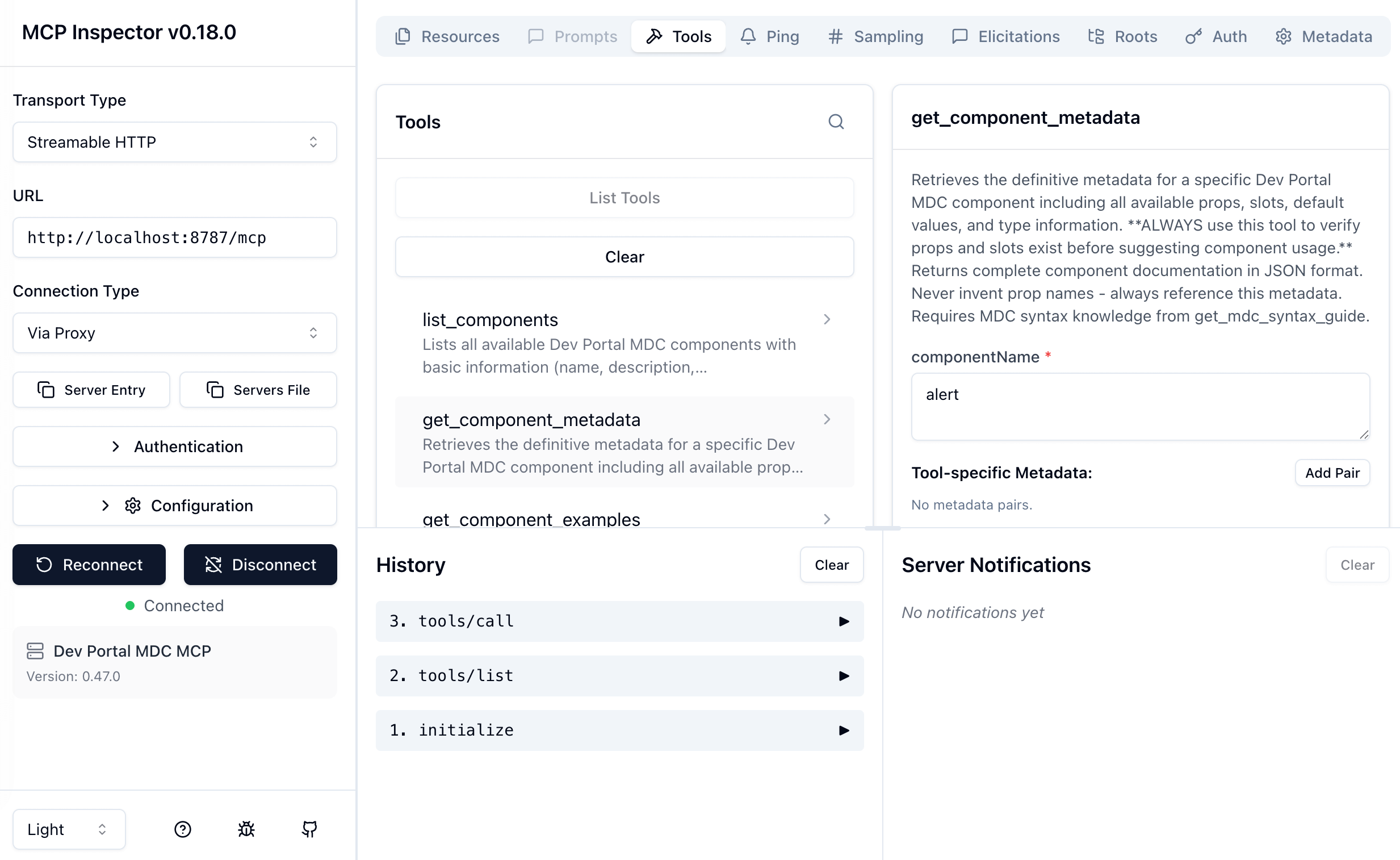
http://localhost:8787/mcp - Using the MCP Inspector to explore your server's capabilities
- Making direct HTTP requests to test specific endpoints
To get up and running right away with the MCP Inspector UI, just execute the following:
The server will start up and the UI will be accessible at http://localhost:6274.
Deploying to Cloudflare
When you're ready to deploy:
Wrangler will deploy your Worker and provide you with a workers URL like: https://my-mcp-server.your-account.workers.dev. You can then configure your MCP clients to connect to this URL, or map the Worker to a custom hostname or even a path on your existing domain.
Connecting MCP clients
Remote MCP servers use Streamable HTTP for communication. This transport uses a single /mcp endpoint for bidirectional messaging between clients and your server.
Most MCP clients can be configured to connect to remote servers by providing your server's URL with the /mcp path:
https://my-mcp-server-prod.workers.dev/mcp
The specific configuration steps vary by client. For detailed setup instructions, consult the documentation for your MCP client.
How clients discover capabilities
When a client connects to your MCP server, it requests the available tools and resources. This means you don't need to manually configure what capabilities are available. The client will:
- Connect to the server and complete the protocol handshake
- Request the list of available tools with their schemas
- Request the list of available resources
- Make these capabilities available to the AI model
The AI can then decide when to use each tool based on the user's request and the tool's description.
Other MCP server use cases
The MDC syntax helper is just one example. Developers are building MCP servers to solve real problems across their organizations.
For internal development:
- Company design system documentation and code generation
- Internal API usage guides and validation
- Coding standards and architecture pattern enforcement
- Private library and tooling documentation
For developer workflows:
- CI/CD pipeline integration and deployment automation
- Issue tracking and project management (Jira, Linear, GitHub)
- Error tracking and debugging tools (Sentry, Rollbar)
- Code review and repository management
For business operations:
- Internal knowledge base and documentation search
- Customer data and CRM integration
- Analytics dashboard and data warehouse queries
- Company-specific workflow and process automation
You can browse available servers at the MCP Servers repository.
Wrapping up
Building an MCP server lets you extend AI capabilities with domain-specific knowledge. By deploying to Cloudflare Workers, you get a globally distributed, low-latency server that scales automatically.
The key steps are:
- Identify the domain knowledge AI assistants are missing
- Set up a Cloudflare Worker project with the Agents SDK and MCP SDK
- Create an
Agentclass with tools (using Zod schemas) and resources - Test locally with
wrangler devand the MCP Inspector - Deploy to Cloudflare and configure your MCP clients to connect via the
/mcpendpoint
For more information, check out:
If you have questions or want to share what you've built, feel free to reach out on Bluesky or X.